

Who can access this feature?
- Partner
- Company/Network Admins with write and read access
- Meter Support
Overview
Meter PDUs allow you to see power consumption and remotely power cycle attached devices if a hard reboot is required. They can be found by clicking Hardware > PDUs in the left-hand sidebar. This will bring you to the PDUs overview page.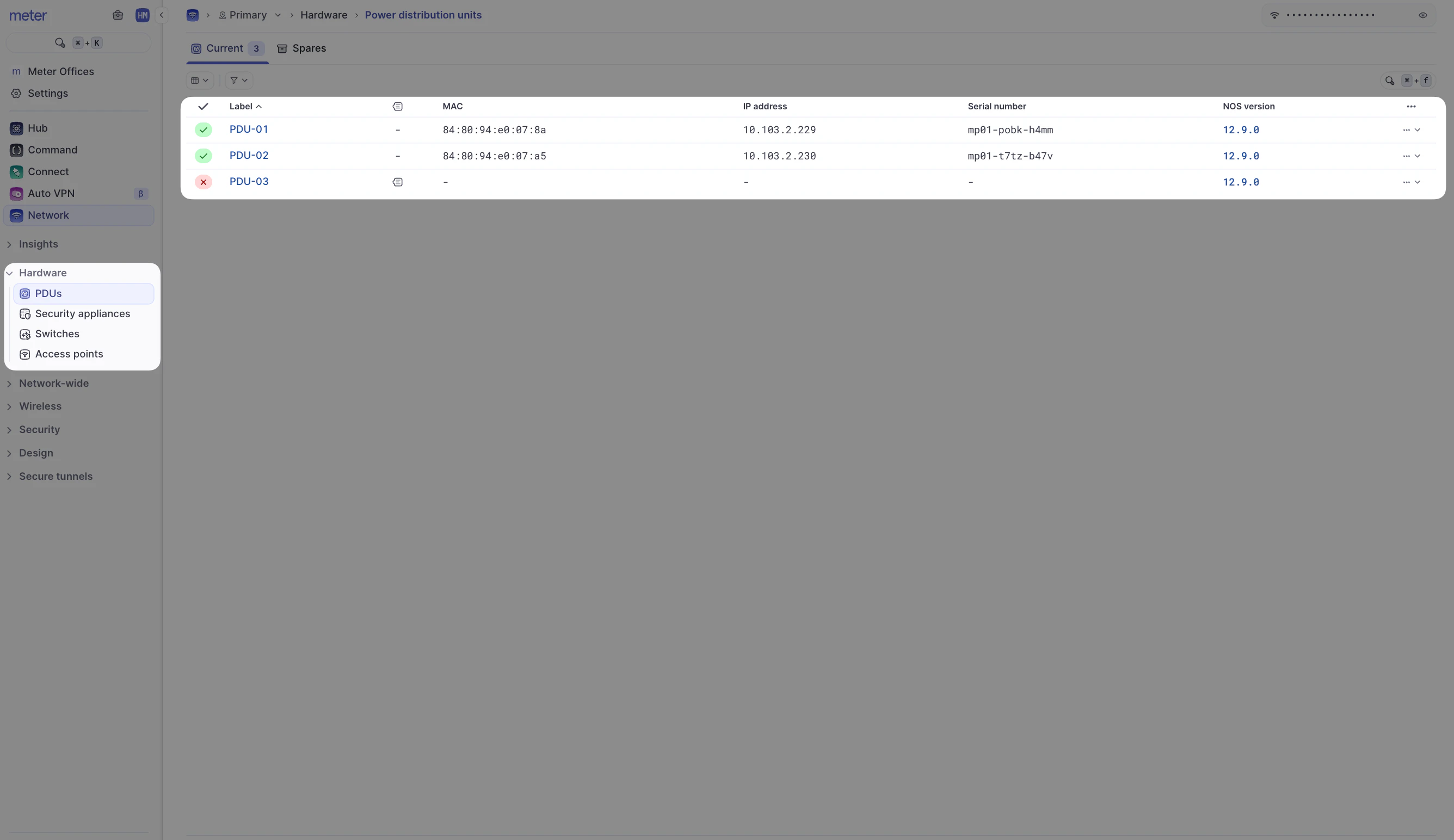
Insights
From the Insights page, you can see historical stats about this PDU including power consumption, current, temperature, and other details. You can change this to be as close as the last hour or up to the past 30 days, as well as narrow it down to specific outlets on this particular PDU.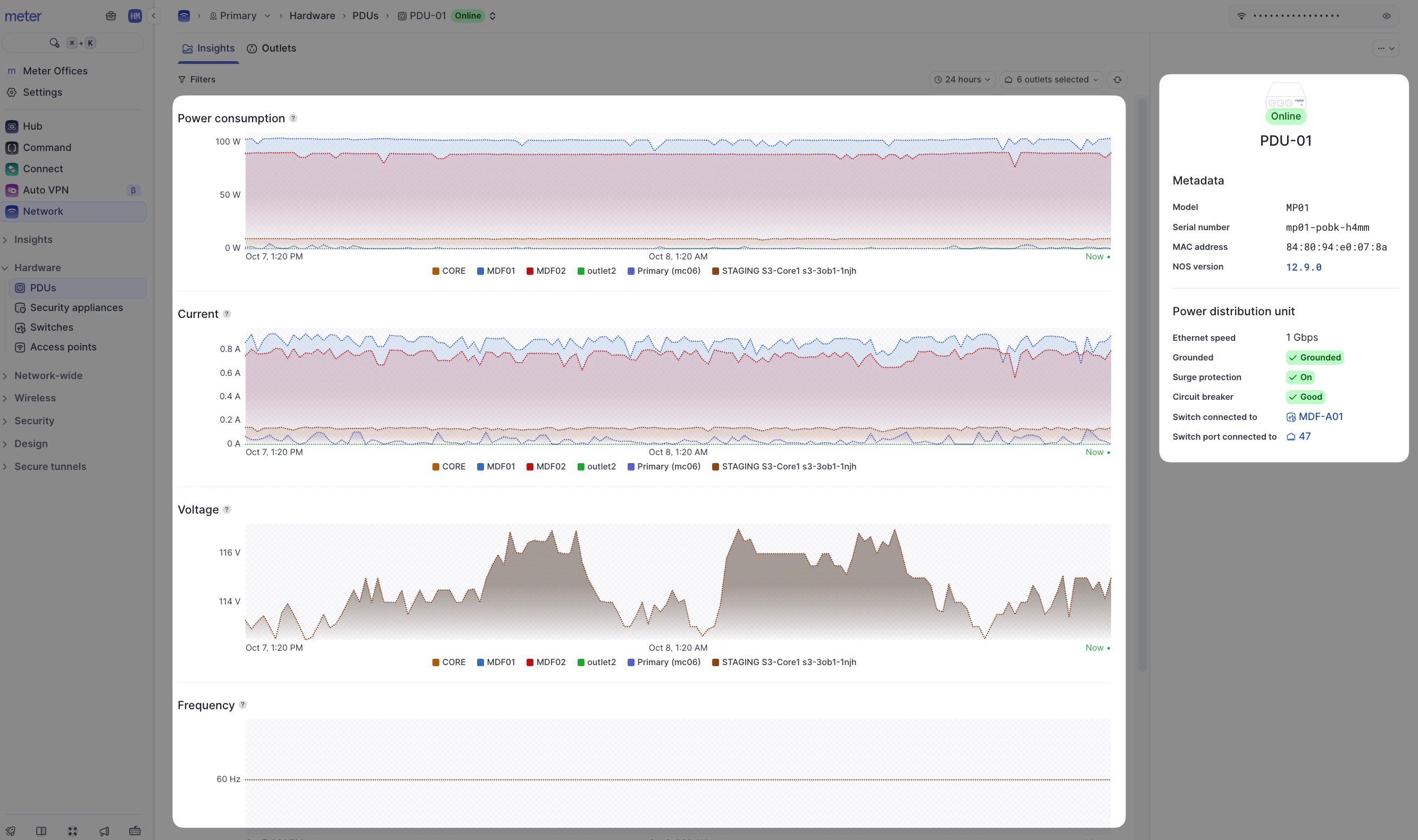
Outlets
If you click on the Outlets tab, you’ll see the details of each outlet on this PDU specifically. During your Meter Network installation, Meter will designate which outlets are connected to which Meter device.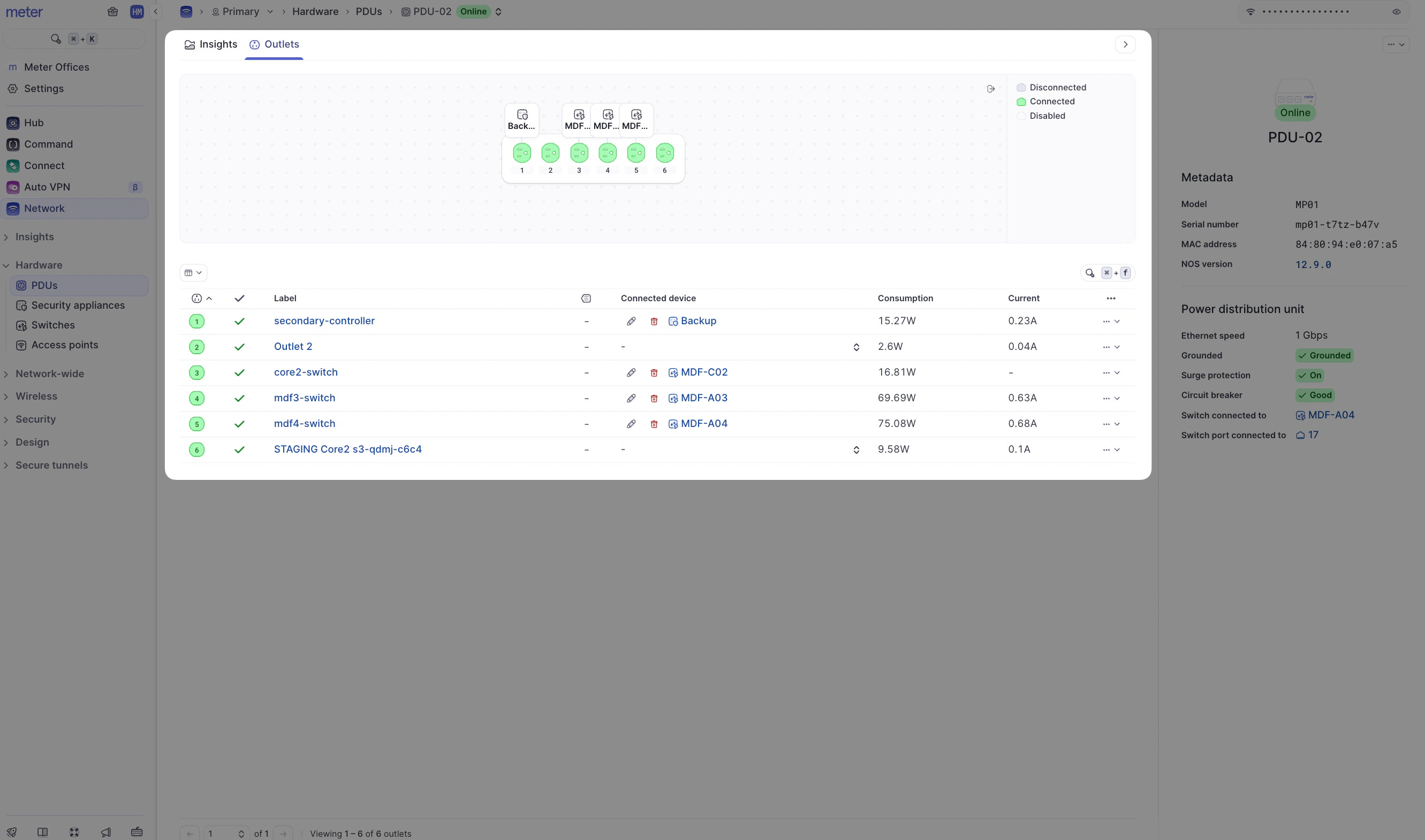
Outlet details
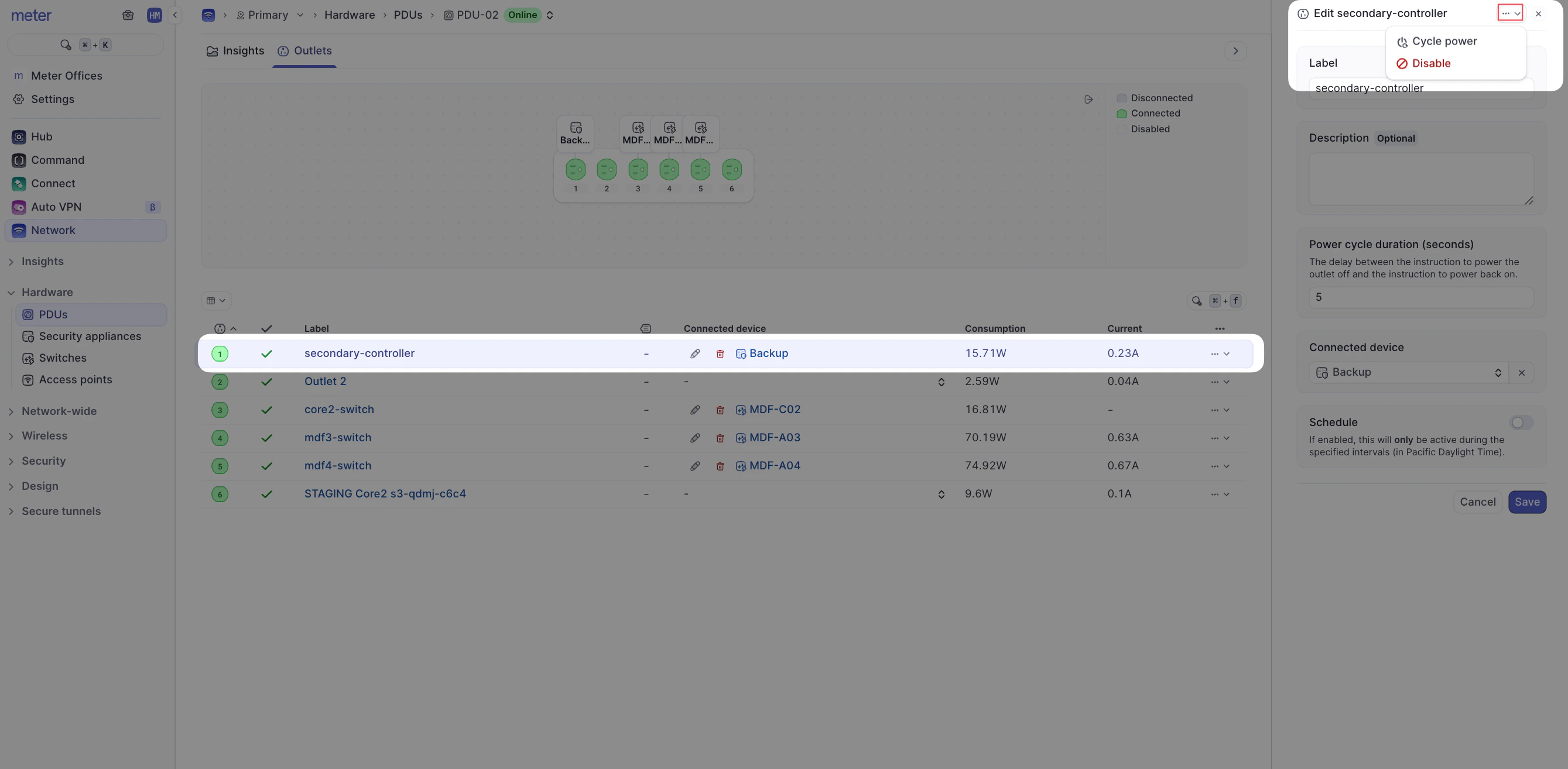
If you click on the label of an outlet, you’ll see a few details including:- The Label
- Whether it’s Enabled (that is, whether it’s on and allowing power to pass)
- A delay in seconds
- The connected device, if it’s a Meter device
Power cycling
To cycle power on the PDU, click the … button in the top right, and select Cycle Power. This will disable power to the outlet, waiting for the specific delay before re-enabling power to the outlet. You can also disable or enable the outlet port by selecting Disable under the same action menu.Need help?
If you run into any issues or have questions, please reach out to our Support Engineering team by opening a ticket via the Dashboard: https://dashboard.meter.com/supportLast updated by Meter Support Engineering on 01/23/2026